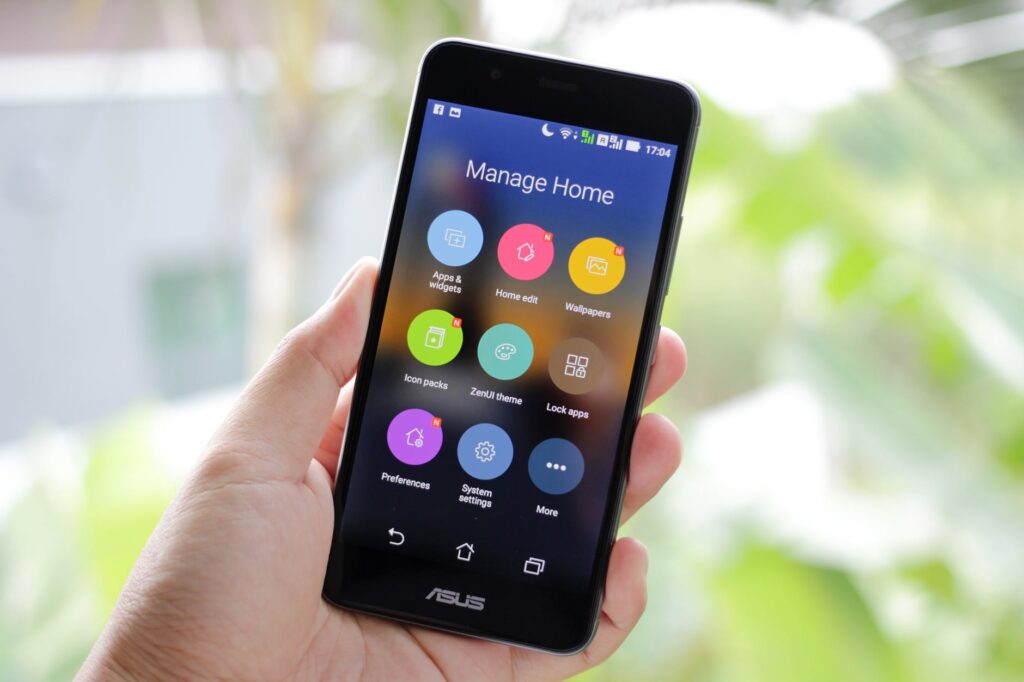
Prior to data transfer, it is essential to do the follow steps given Below
- Have at least a 50% charge: The higher, the better. Depending on how much data you’re transferring, it’s natural for your phone to become warm and, therefore, drain its battery at a much faster rate.
- Double-check the amount of data you’re moving: Your iPhone may or may not have enough storage capacity to receive every file. If not, now is a good time to organize your old files on your Android phone, figure out what to keep, what to store in an external drive, and what to purge before moving. Photos are likely to be your biggest storage hog, and an app like MacPaw’s Gemini Photos does an excellent job of finding duplicate photos, blurry and out-of-focus images, and screenshots.
- Have a stable Wi-Fi connection: We’ll be moving the data wirelessly, which means a strong and static signal is necessary for the most optimal transfer.
Method 1: Transfer data via Google account
you can use your Gmail to transfer data via the cloud. This method is ideal if there are any extra files that you forgot to move over during the first method or if you had already set up your iPhone and couldn’t use Move to iOS.
1. Open Settings app on Android
Look for the Google tab, tap Backup, and toggle on what categories you’d like to be synced across devices. You can double-check what’s being copied by expanding Google Account data in the Backup details list. Wait until the backup sync is completed.
2. Sync Google account with the iPhone
Open up the iPhone’s settings > Mail > Accounts > Add Account > and enter your Gmail credentials.
The data from your Google account should sync with the iPhone and automatically begin importing.
3. Bonus Google alternative
You can also upload files into a Google Drive folder and download them onto your iPhone. Just note that a standard, free Google account comes with 15GB of storage. You’ll have to pay up for expanded cloud storage
Method 2: Transfer data via Move to iOS
My go-to method for file transferring is Apple’s own Move to iOS service. It will be preloaded on your iPhone so all you have to do is download the Move to IOS app on your Android device via the Google Play Store.
In order for the service to work, you’ll have to be in the iOS Setup Assistant, which is the startup page when you first turn on your new iPhone — the one that cycles between “Hello” in different languages. If you’ve already set up your iPhone and can access the home screen, you’ll have to factory reset it to use Move to iOS.
1. Start with your iPhone
From iOS Setup Assistant, go through the initial setup slides, including Wi-Fi connection, establishing a passcode, and accepting Apple’s diagnostics terms and conditions. You’ll eventually see an Apps & Data screen.
2. Tap on Move Data from Android
Then tap Continue.
3. On your Android device, open the Move to iOS app
Agree to Apple’s privacy policies, grant the app access to your files and location, and hit Continue when you reach the Find Your Code screen.
4. Your iPhone screen should show a one-time code
Enter this code on your Android phone. This will initiate the pairing process, after which you’ll be able to select what files you’d like to transfer over.
The list includes messages, contacts, calendar info, Google account(s), photos and videos, and user settings.

5. Leave your Android and iPhone untouched
Leave the phones alone while the transfer is processing. Depending on how much data you’re moving from phone to phone, the transfer can take 30 minutes or more.