
Introduction: Experiencing a black screen and a blinking power light on your Lenovo laptop can be incredibly frustrating. This issue can stem from various causes, ranging from simple software glitches to more complex hardware problems. In this post, we’ll guide you through several troubleshooting steps to help you resolve this issue and get your laptop back in working order.
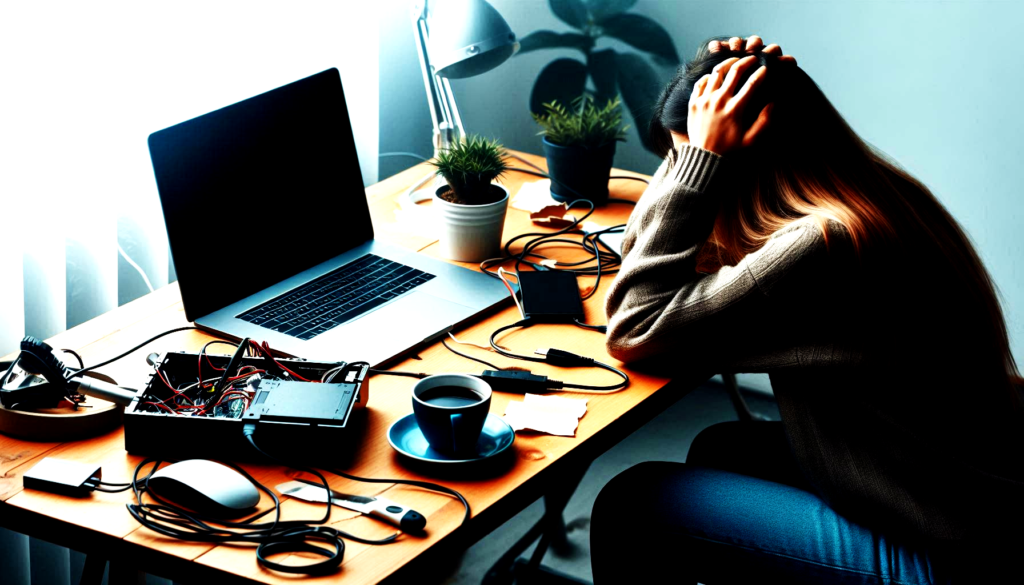
Step-by-Step Troubleshooting Guide:
1. Perform a Hard Restart:
- Shut down your laptop completely.
- Disconnect all external devices (USB drives, external monitors, etc.).
- Remove the battery (if possible) and unplug the power adapter.
- Press and hold the power button for about 60 seconds.
- Reconnect the battery and power adapter, then try turning on your laptop again
2. Reset the Display Mode: To fix Black screen
- Press
Win + Ctrl + Shift + Bto refresh your display connection. This can help if the screen is black due to a display mode glitch.
- Press
3. Check the Power Supply and Connections:
- Ensure that your power adapter and battery are working correctly. Try using a different power adapter if available.
4. Update or Reinstall Graphics Drivers:
- Outdated or corrupted graphics drivers can cause display issues. Update your drivers through the Device Manager:
- Go to
Control Panel > System and Security > Device Manager > Display adapters.
- Go to
- Right-click your graphics card and select
Update driver.
- Right-click your graphics card and select
- Outdated or corrupted graphics drivers can cause display issues. Update your drivers through the Device Manager:
5. Connect to an External Monitor:
- Connect your laptop to an external monitor using a VGA or HDMI cable. If the external monitor works, the issue might be with your laptop’s screen or internal cables.
6. Check for Hardware Issues:
If none of the above steps work, there might be a hardware issue. It could be related to the motherboard, RAM, or other internal components. In this case, it might be best to contact Lenovo support or visit a professional repair service.
Advanced Troubleshooting:
1. Boot into Safe Mode:
- Restart your laptop and press
F8(orShift + F8) repeatedly before the Windows logo appears.
- Restart your laptop and press
- Select
Safe Modefrom the Advanced Boot Options menu.
- Select
- If your laptop boots into Safe Mode, it could indicate a software issue. You can then try to update drivers or uninstall recent updates.
2. Run a System Restore:
- If you can access Safe Mode, try performing a System Restore to revert your laptop to a previous state when it was working correctly.
- Go to
Control Panel > System and Security > System > System Protection > System Restore.
- Go to
3. Check for Loose Connections:
- If you’re comfortable opening your laptop, check for any loose connections, especially around the display and motherboard. Ensure all cables are securely connected.
4. BIOS/UEFI Settings:
- Sometimes, resetting the BIOS/UEFI settings to default can help.
- Restart your laptop and press
F2(orDel,Esc, depending on your model) to enter the BIOS/UEFI setup.
- Restart your laptop and press
- Look for an option to reset to default settings and save changes.
Conclusion: If none of these steps resolve the issue, it might be a more serious hardware problem. Contacting Lenovo support or visiting an authorized service center would be the best course of action. We hope this guide helps you troubleshoot and fix the black screen and blinking power light issue on your Lenovo laptop.
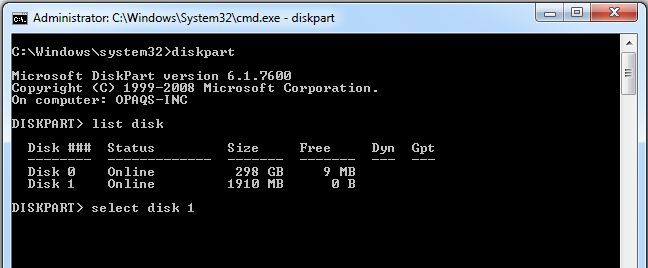

Thanks for your support & guidance to recover my laptop in working condition
Thanks for your valuable feedback